Hide your numbers when you share your screen
A dashboard on your wallpaper is on show in every call and on every projector. One keystroke covers it.
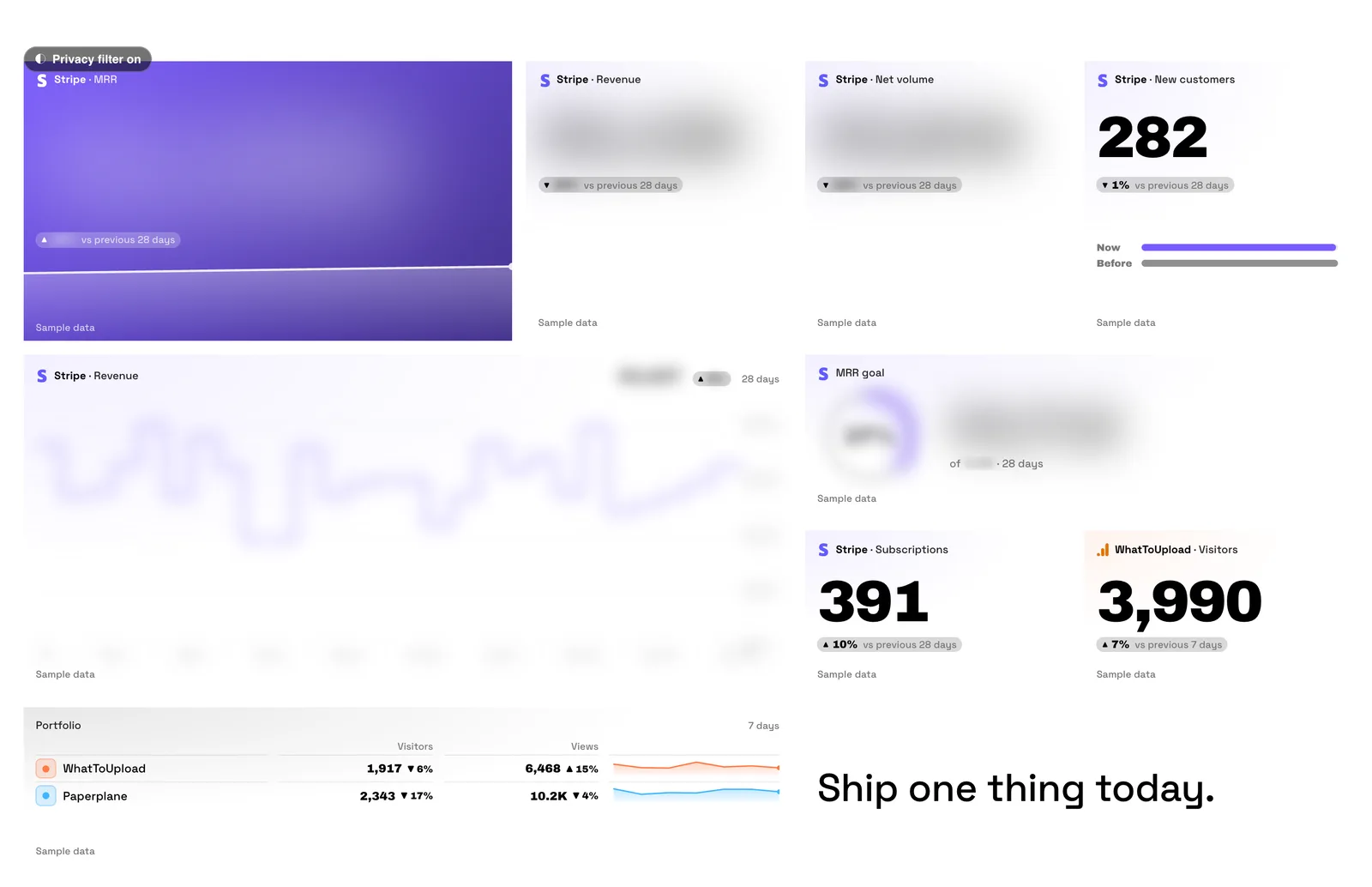
Three levels
- Blur sensitive widgets: only widgets marked Sensitive are blurred. Revenue, cost and token usage widgets are marked by default, and you can change any widget in the editor.
- Blur all numbers: every value and chart is blurred. Labels stay readable, so the desktop still looks like a dashboard.
- Hide: the dashboard is hidden.
One hotkey
Press ⌃⌥⌘P from any app to turn the filter on, and again to turn it off. The menu bar item has the same switch. A small badge on the wallpaper shows while the filter is active.
It can switch itself on
- When a display is mirrored or connected.
- During screen sharing or recording, where macOS lets Wallytics detect it.
Detection of screen sharing depends on what macOS exposes, so do not rely on it alone. The hotkey always works. In Settings you choose which level the hotkey and the automatic triggers switch to.
What it does not do
The filter covers the wallpaper and hides the headline number in the menu bar while it is on. It does not touch any other window on your screen.
Questions
Which widgets count as sensitive?
Revenue, cost and token usage widgets are marked Sensitive by default. Every widget has a Sensitive switch in the editor.
Will it catch every screen share?
No. Automatic detection works where macOS lets Wallytics detect sharing or recording. The hotkey always works.
Does the filter stop the data refreshing?
No. It only changes what is drawn. The numbers are current when you turn it off.
Keep reading
Free for 7 days, the full app, no card. Then from $4.99, once.